Reference Links
Your Research, Organized and Ready
Reference links are the URLs attached to your interview -- guest profiles, articles, product pages, documentation, demos -- anything you might want to reference during the conversation or include in your show notes afterward.
In InterviewCue, links aren't just bookmarks. They're organized by question, automatically extracted from your imported outlines, and can be opened as a guided series of browser tabs during recording through our Link Opener tool. For video podcasts, they become what you show on screen. For audio podcasts, they keep you and your guest anchored to the same reference material. And after the interview, they become your show notes with a single click.
How Links Get Into Your Interview
Automatic Extraction from Import (Recommended)
When you follow the recommended workflow of writing your outline in Google Docs or Notion and importing via markdown, links embedded in your background notes are automatically extracted and associated with the relevant question.
For example, if your outline includes:
## What problem were you trying to solve with HyperEco?

Product focuses on sustainable packaging for e-commerce.
See their [product overview](https://hypereco.example.com/overview) and this
[TechCrunch coverage](https://techcrunch.example.com/hypereco-launch) for context.
After import, InterviewCue creates two reference links -- "product overview" and "TechCrunch coverage" -- both associated with that specific question. On the interview details page, they appear grouped under that question so you can see exactly which resources relate to which topic.
You can also include a dedicated Links section at the end of your markdown for general resources not tied to a specific question:
## Links

- [Sarah's LinkedIn](https://linkedin.com/in/sarahchen)
- [HyperEco Website](https://hypereco.example.com)
- https://hypereco.example.com/blog
These appear as Additional Resources on the interview details page, separate from the question-grouped links.
This is why the recommended workflow suggests embedding links directly in the background notes of each question rather than listing them all at the end -- InterviewCue uses that placement to organize your references by topic automatically.
Adding Links in the Editor
You can also add links manually when creating or editing an interview. In the editor, click Add Link to create a new entry with a URL and optional name. Links can be reordered with the up/down buttons or removed entirely.
If you don't provide a name, InterviewCue uses the domain or full URL. But descriptive names make links far more useful during the interview -- "Sarah's TED Talk on Sustainability" is much more glanceable than "ted.com."
Adding Links During the Interview
Discovered a resource mid-conversation? In Live Mode, press L to open the Add Link dialog. Enter a URL and optional name, and the link is saved immediately -- timestamped as an event in your timeline and available in your show notes afterward. Everyone in a collaborative session can see the new link, and even guests can add links to capture resources they mention.
This is perfect for the moment your guest says "we just published something about this" -- capture the URL without breaking the flow of conversation.
Link Opener: Your Visual Interview Companion
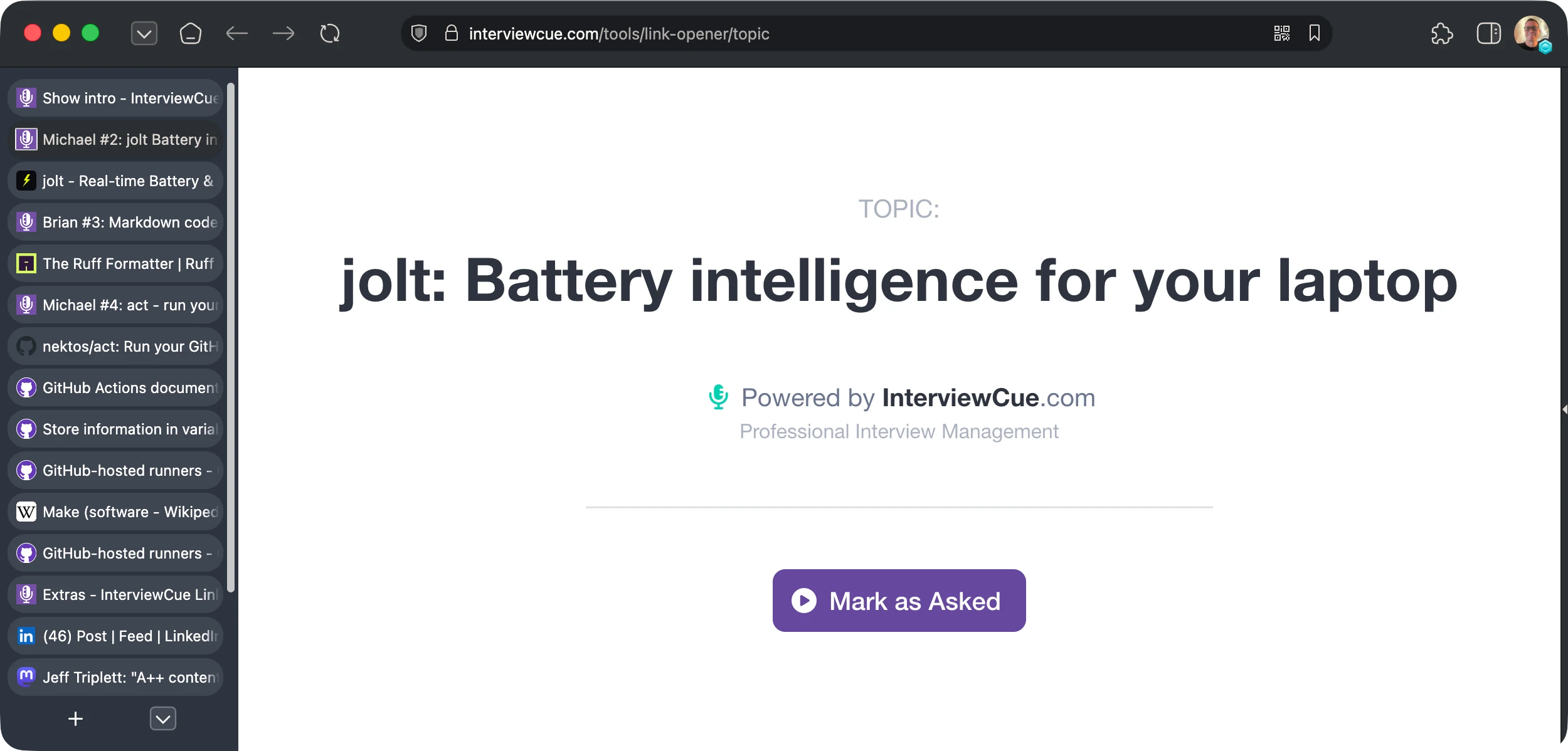
One of InterviewCue's most distinctive features is the Link Opener -- a tool that takes your reference links and opens them as a series of organized browser tabs, ready to guide you through the interview.
How It Works
From the interview details page, click the Open in Tabs dropdown. You'll see three options:
- Open All in Tabs -- opens every reference link at once as a flat list
- Open with Topic Separators -- opens links grouped by question, with separator tabs between topics so you can see where one question's resources end and the next begins (best for resources only)
- Open with All Topics -- creates separator tabs for every question, even those without links, so you can navigate the full interview structure through your browser tabs (best for use as resources + timing control)
This launches the Link Opener in a new browser window with your links pre-loaded. From there, Cmd+Click (Mac) or Ctrl+Click (Windows/Linux) opens each link in a background tab. Opened links gray out and show a checkmark so you can track which resources you've already visited.
For Video Podcasts
If your show has a video component -- whether it's a YouTube stream, Zoom recording, or live broadcast -- the Link Opener becomes your visual guide. As you discuss each topic, the corresponding webpage is already open and ready to share on screen. No fumbling with bookmarks or searching through tabs mid-conversation.
Your guest sees the product page, article, or demo you're discussing. Your audience sees it too. The conversation feels grounded and visual rather than abstract.
For Audio-Only Podcasts
Even if you're recording audio only, the Link Opener is valuable. Share your screen with the guest through Zoom, Google Meet, or whatever you use to connect, so they can see exactly what you're referencing. When you mention "that blog post you wrote about scaling challenges," you're both looking at it. The conversation becomes more precise and more natural -- and your guest doesn't have to scramble to figure out which of their articles you're referring to.
Integration with Live Interview Timing
Here's where Link Opener gets really powerful. When you're logged into InterviewCue and have an active interview session, the Link Opener automatically discovers your session and adds in-page controls to each topic separator tab.
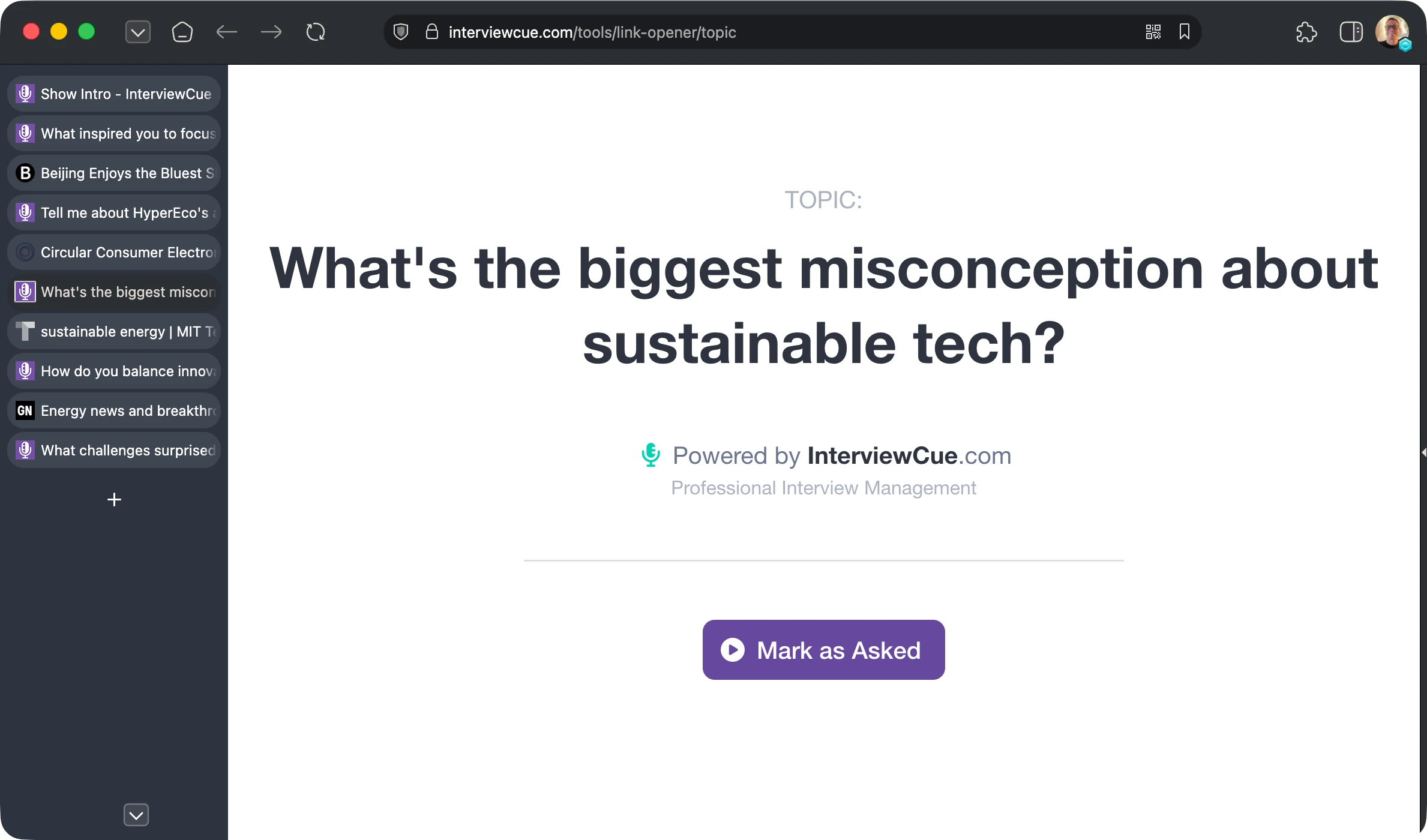
Each topic separator shows a purple Mark as Asked button. When you move to a new topic during the interview, press that button -- InterviewCue records the timestamp for that question, just as if you had clicked the question title in Live Mode. The button disappears so you know which topics have been covered.
This means you can control your interview timeline without switching windows. Stay in the browser, share links on screen, talk with your guest -- and InterviewCue tracks everything in the background. When the interview ends, your post-production timeline has accurate timestamps for every topic, ready for chapter generation.
For the full walkthrough of this workflow, see Visual Resources with Link Opener in the Your First Interview guide.
Smart Link Filtering
When you import interviews from markdown -- especially from show notes or research documents -- they often include boilerplate links that appear in every episode: "Follow us on X," "Visit our sponsor," "Subscribe to the newsletter." These clutter your reference list without adding interview-specific value.
InterviewCue's Smart Link Filtering lets you permanently exclude these repetitive URLs. On the interview edit page, each link has an Exclude button (🚫 icon). Click it once, and that URL is automatically filtered out of all future imports.

Your first import might come in with dozens of links including social profiles, sponsor pages, and general promo URLs mixed in with the genuinely useful references. After excluding the noise once, subsequent imports arrive clean -- only the topic-relevant resources you actually want during the interview.
Links are normalized before comparison -- https://google.com and http://www.google.com are treated as the same URL -- so slight variations in formatting won't sneak through.
Managing Your Exclusions
You can review and manage your full exclusion list at Account > Settings > Manage Excluded Links. From there you can:
- Search and filter your excluded links
- Undo individual exclusions if you change your mind about a specific URL
- Clear all exclusions to start fresh
- Add new exclusions directly by URL, without needing to import an interview first
Your exclusion list is personal to your account and doesn't affect other users.
Copying Links for Show Notes
After the interview, your reference links are ready to become show notes. On the interview details page, click the Copy Links button to copy all links as formatted markdown -- names, URLs, grouped and ready to paste.
Drop this directly into your podcast hosting platform, blog, episode page, or CMS. The links are already named and organized -- no manual assembly required.
Links added during the interview are included too, so resources your guest mentioned mid-conversation are captured alongside your pre-planned references. Everything you need for complete show notes is already gathered in one place.
Links on the Interview Details Page
The interview details page shows all your reference links organized by question. Each question that has associated links shows them grouped beneath it, making it easy to see which resources relate to which topic. Links not tied to a specific question appear in an Additional Resources section at the end.
From here you can:
- 📋 Copy Links -- copies all links as markdown for show notes
- 🔗 Open in Tabs -- launches the Link Opener with your links (three options as described above)
Links are also fully searchable across your entire interview library. Searching for a domain, link name, or URL on the interview list page finds every interview that references it -- useful for tracking down which episodes covered a particular product, article, or guest.
What's Next?
Now that your links are organized and ready:
Live Interview Mode - See how links and questions work together during recording
Link Opener Tool - Open your interview links as organized browser tabs
Post-Production Timeline - How link events and question timing flow into your timeline
Your First Interview - Walk through the complete journey from idea to published episode