Collaborative Live Mode: Interview as a Team
Interview Together, Capture Together
Collaborative Live Mode transforms solo interviews into team experiences. Multiple people can join your live interview session, see real-time progress, and help capture important momentsβall perfectly synchronized.
The Power of Collaboration
Before Collaborative Mode:
- Host conducts interview alone
- Producer can't see what's happening
- Team members miss important context
- Post-production takes longer
With Collaborative Mode:
- Host leads the interview
- Producer captures events in real-time
- Team monitors progress together
- Everyone stays synchronized
- Post-production starts during recording
[PLACEHOLDER: Diagram showing host + co-hosts + guests all connected]
What is Collaborative Live Mode?
Collaborative Live Mode allows multiple people to join your live interview session with different levels of access:
Three Participant Roles
π Creator (You)
- Owns the interview
- Full control over everything
- Starts and ends the session
- Controls question navigation
- Can capture events
- Manages access
ποΈ Co-Host
- Full participant access
- Can capture events
- Can see everything
- Can add links
- Cannot control questions
- Cannot end interview
ποΈ Guest (View-Only)
- Read-only access
- Sees questions and progress
- Sees captured events
- Can add links (only!)
- Cannot capture events
- Cannot control questions
[PLACEHOLDER: Table showing permissions by role]
Use Cases
π€ Host + Producer Workflow
Perfect for professional podcast production:
Host's role:
- Focus completely on the interview
- Ask questions and listen actively
- Navigate between questions
- Stay present with the guest
Producer's role:
- Monitor from control room
- Capture technical issues (coughs, glitches)
- Mark great quotes and highlights
- Note chapter markers
- Add reference links in real-time
- Let host focus on conversation
Result: Better interviews, faster post-production, clearer communication.
[PLACEHOLDER: Screenshot showing host and producer views side-by-side]
π₯ Team Monitoring
Great for larger productions:
Who joins:
- Host (conducting interview)
- Producer (capturing events)
- Sound engineer (monitoring audio issues)
- Content manager (noting highlights for social)
- Junior producer (learning the process)
Benefits:
- Everyone sees the same information
- Real-time collaboration
- Training opportunities
- Faster decision-making
- Better coverage of important moments
π Training & Mentoring
Perfect for onboarding:
Trainer enters as Co-Host:
- New host conducts interview
- Trainer monitors progress
- Captures important training moments
- Provides feedback after
- Builds confidence
Guest Mode for observers:
- Trainees watch experienced hosts
- See the process in real-time
- Learn workflow without interfering
- Ask questions after the session
π¬ Remote Co-Hosting
Great for shows with multiple hosts:
- Host A leads the interview
- Host B monitors and captures moments
- Both see the same questions
- Both see events as they're captured
- Seamless collaboration across locations
How to Start a Collaborative Session
Step 1: Enable Collaboration
From your interview details page:
- Click "Go Live" to enter Live Mode
- Look for "Start Collaborative Session" button
- Click to start the session
- A unique Share Code is generated
[PLACEHOLDER: Screenshot of starting collaboration]
Step 2: Share the Code
You'll see a 6-character share code like:
ABC123
Share this code with your team via:
- Slack message
- Text message
- Video chat
- Voice call
Security note: This code is unique to this interview session and expires when the interview ends.
Step 3: Team Members Join
Co-Hosts join:
- Go to InterviewCue
- Click "Join Live Session" (top nav or homepage)
- Enter the share code
- Click "Join as Co-Host"
- They're immediately in sync!
[PLACEHOLDER: Screenshot of join dialog]
Guests join (optional):
If you enabled Guest Mode:
- Share the separate guest code
- Guests enter that code
- They join with view-only access
The Collaborative Interface
What Everyone Sees
Synchronized across all participants:
- β Current question
- β Background notes
- β Timer (exact time)
- β Question navigation state
- β Participant list
- β All captured events (in real-time)
- β Reference links
Updates happen instantly (within 500ms) for everyone.
[PLACEHOLDER: Screenshot showing synchronized views]
Creator (Host) View
Special controls only you see:
- End Interview button
- Start Recording button
- Question navigation controls (only you can navigate)
- Pause/Resume control
- Session management
What you can do:
- Everything Co-Hosts can do
- Plus: Control the interview flow
- Plus: End the session
- Plus: Manage access
Co-Host View
Full participation without control:
You can:
- β Capture all event types (1-5 hotkeys)
- β Add reference links
- β See all questions and notes
- β View participant list
- β See timer and progress
You cannot:
- β Navigate questions (only Creator can)
- β Start or end the interview
- β Pause the timer
- β Kick out participants
Why: Prevents conflicting navigation and maintains clear leadership.
Guest View
Watch-only with minimal contribution:
You can:
- β See current question
- β See background notes
- β See timer and progress
- β See participant list
- β Add links (your one contribution)
You cannot:
- β Capture any events
- β Navigate questions
- β Control anything
- β Interfere with the interview
Why: Perfect for observers, trainees, or the actual interview guest.
[PLACEHOLDER: Screenshot of Guest Mode view with limited UI]
Real-Time Synchronization
How It Works
InterviewCue uses state-based synchronization:
- All session state stored in database
- Each change updates a version number
- Participants poll every 500ms
- If version changed, they fetch new state
- UI updates instantly
Benefits:
- Works across server instances
- Survives disconnections
- Always consistent
- Debuggable (state visible in database)
What Gets Synchronized
Instantly synchronized:
- Current question changes
- Events captured by anyone
- Links added by anyone
- Timer updates
- Participant joins/leaves
- Pause/resume state
Not synchronized (participant-local):
- Scroll position
- Modal open/closed state
- Text being typed (before submission)
Handling Disconnections
If a participant loses internet:
What happens:
- They see "Reconnecting..." message
- State polling continues trying
- When reconnected, they sync immediately
- They see all changes that happened
They don't:
- Lose their place
- Get kicked from session
- Cause issues for others
Result: Robust, forgiving collaboration.
Capturing Events Collaboratively
Who Can Capture
Creators and Co-Hosts: All event types
Guests: No events (links only)
Capture Workflow
- Anyone presses a hotkey (1-5)
- Event dialog opens
- They type notes
- Event is saved with their name
- Everyone sees it immediately
Example:
04:23 - Highlight β (Captured by Producer Sarah)
"Amazing Beijing story - use in promo"
Everyone knows who captured what!
Event Attribution
All events show who captured them:
- Your events: "Captured by You"
- Others' events: "Captured by [Name]"
- Timeline: Shows full attribution
Benefits:
- Clear accountability
- Easy to identify capture patterns
- Training feedback opportunities
- Better post-production communication
[PLACEHOLDER: Screenshot showing event attribution]
Avoiding Conflicts
Best practices to avoid duplicate captures:
Strategy 1: Assign roles
- Host: Focus on conversation, capture sparingly
- Producer: Primary event capture
- Others: Only capture if producer misses something
Strategy 2: Communicate
- Use external chat (Slack, Teams)
- Quick "got it" confirmations
- Pre-defined responsibilities
Strategy 3: Don't worry about duplicates
- Easy to delete duplicates later
- Better to over-capture than miss something
- Err on the side of more coverage
Managing Participants
Participant List
See everyone currently in the session:
Shows:
- Participant name
- Role (Creator, Co-Host, Guest)
- Join time
- Active status
[PLACEHOLDER: Screenshot of participant list]
How to view:
- Always visible in sidebar (desktop)
- Expandable panel (mobile)
- Shows real-time updates
Adding More Participants
Share the same code with anyone else:
- Code works until session ends
- No limit on co-hosts (reasonable use)
- Guest limit configurable (default: 10)
Removing Participants
Currently: Participants can only leave themselves
To leave a session:
- Click "Leave Session" button
- Confirm
- Return to interview details page
Future feature: Creators will be able to kick participants if needed.
Guest Mode (View-Only)
Guest Access Enabled by Default
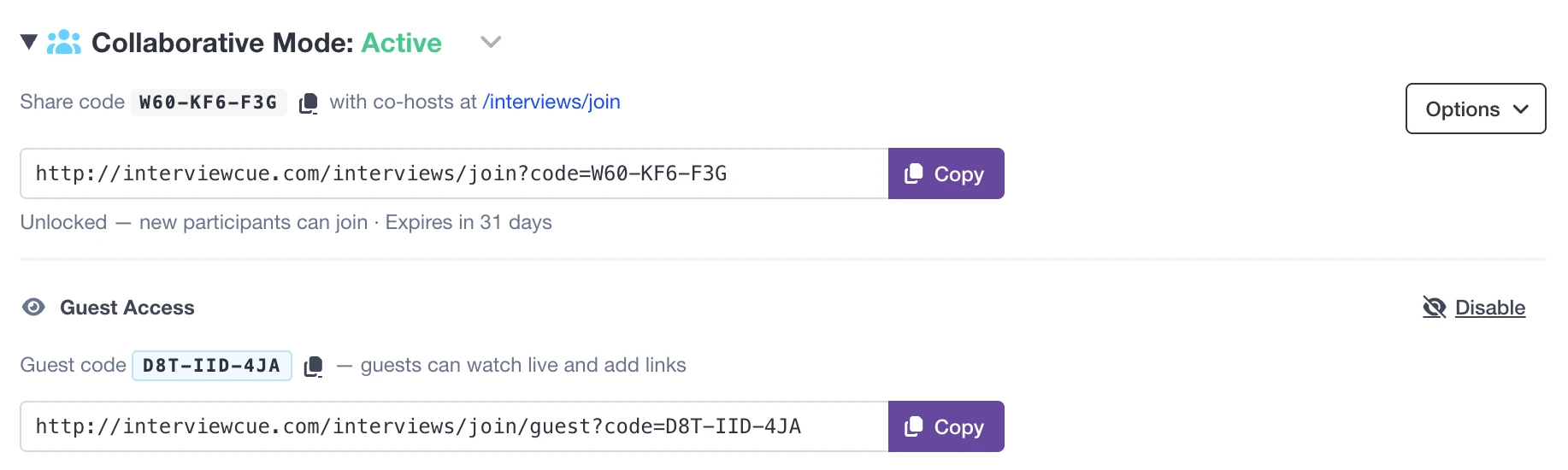
When you enable collaborative mode, guest access is automatically enabled along with co-host access. This makes it easy to invite both full participants and observers.
What happens when you click "Enable Collaborative Mode":
- A co-host share code is generated
- Guest access is automatically enabled
- A separate guest code is generated
- You can disable guest access later if you don't need it
[PLACEHOLDER: Screenshot of collaborative mode with both codes visible]
Guest Code
Guest code is separate from co-host code:
Co-Host code: ABC-XYZ-123 (full participation)
Guest code: DEF-UVW-456 (view-only)
Why separate?
- Control access levels
- Prevent accidental interference
- Clear role distinction
- You can disable guest access while keeping co-host access active
Guest Permissions
Guests have minimal interaction:
β Can:
- View current question
- See background notes
- See timer
- View events as they're captured
- See participant list
- Add links (their one contribution!)
β Cannot:
- Capture events
- Navigate questions
- Control anything
- Interfere with interview
Guest Use Cases
Perfect for:
- Actual interview guest - They can follow along and add relevant links
- Observers - Stakeholders watching the process
- Trainees - Learning without risk of interference
- Clients - Seeing the production process
- Remote team members - Staying informed without needing control
[PLACEHOLDER: Guest Mode UI screenshot]
Best Practices
Roles & Responsibilities
Before the interview, agree on:
Host:
- Lead the conversation
- Navigate questions
- Minimal event capture
- Stay present with guest
Producer:
- Monitor audio levels
- Capture audio issues (1 key)
- Mark chapter breaks (4 key)
- Watch for technical problems
Content Manager:
- Capture highlights (3 key)
- Mark quotable moments
- Note social media clips
- Track promotional content
Clear roles = No conflicts
Communication
Use external chat for coordination:
- Slack/Teams channel
- Text message thread
- Discord voice chat
What to communicate:
- "Got that highlight"
- "Marking chapter here"
- "Great quote at 12:34"
- "Audio issue - I'm noting it"
Result: Everyone knows what's being captured without on-screen clutter.
Pre-Session Checklist
15 minutes before interview:
- β Start collaborative session
- β Share codes with team
- β Verify everyone joined
- β Confirm roles and responsibilities
- β Test event capture (practice run)
- β Check audio/video setup
- β Open external chat channel
During the Interview
Host best practices:
- Focus on conversation
- Let team handle captures
- Navigate questions naturally
- Trust your team
Co-Host best practices:
- Stay alert but unobtrusive
- Quick capture with minimal notes
- Don't over-capture
- Watch for what others miss
Guest observer best practices:
- Just watch and learn
- Don't interfere
- Save questions for after
Technical Details
Session Lifecycle
1. Session Creation:
- Host enters Live Mode
- Clicks "Start Collaborative Session"
- Unique session created in database
- Share codes generated
2. Active Session:
- Participants join via codes
- Real-time state synchronization
- Events captured and synced
- Everyone stays updated
3. Session End:
- Host clicks "End Interview"
- Session deleted from database
- All participants redirected
- Codes become invalid
State Synchronization
Poll interval: 500ms (twice per second)
What's polled:
- Current question index
- Timer state and time
- Is paused?
- Event list
- Participant list
- Last action details
Efficiency:
- Only sends updates when version changes
- Minimal bandwidth
- Fast responses
Offline Behavior
If participant goes offline:
- Stops receiving updates
- Shows "Reconnecting..." indicator
- Continues trying to reconnect
- Syncs fully when back online
If creator goes offline:
- Session remains active
- Co-hosts can still capture
- Timer continues
- Auto-sync when creator returns
Troubleshooting
Can't Start Collaborative Session
Possible causes:
- Interview not started yet (click "Start Recording" first)
- Already in a session
- Network connectivity issues
Solutions:
- Start the interview first
- Check internet connection
- Refresh the page
Co-Host Can't Join
Possible causes:
- Wrong share code
- Session hasn't been created yet
- Session already ended
- Network issues
Solutions:
- Double-check the code (case-sensitive)
- Verify host started collaboration
- Get a fresh code from host
- Check internet connection
Not Seeing Real-Time Updates
Possible causes:
- Network lag
- Browser throttling (tab in background)
- Session connectivity issue
Solutions:
- Bring InterviewCue tab to foreground
- Refresh the page
- Check internet connection
- Try a different browser
Events Not Syncing
If your events aren't appearing for others:
- Check your internet connection
- Verify you're still in the session
- Refresh the page
- Try capturing again
If you're not seeing others' events:
- Check internet connection
- Refresh the page
- Verify session is still active
Security & Privacy
Access Control
Share codes are secure:
- Randomly generated (36^6 = 2 billion combinations)
- Unique per session
- Expire when interview ends
- Not reusable
Best practices:
- Only share with trusted team members
- Use separate guest code for observers
- Codes can't be guessed
Data Privacy
Who can see what:
- Participants see only this interview's data
- No access to your other interviews
- No account access
- Limited to session duration
After session ends:
- Participants lose access immediately
- Codes become invalid
- Data remains in your interview only
Permissions
Creators (You):
- Own the interview
- Control access
- Can end session anytime
- Full post-production access
Co-Hosts:
- Access during session only
- Can capture events
- No post-production access (unless shared separately)
- Cannot modify interview structure
Guests:
- View-only (plus add links)
- No lasting access
- No post-production access
- Cannot capture anything
Frequently Asked Questions
Can co-hosts access the interview after it ends?
No. Collaborative session access ends when the interview ends. To give someone post-production access, use the Share feature instead.
How many people can join?
Co-Hosts: Unlimited (reasonable use)
Guests: Default 10, configurable
Do participants need InterviewCue accounts?
Co-Hosts: Yes, must be logged in
Guests: No, guest mode works without account (future feature)
Can I use this for remote interviews?
Absolutely! Perfect for distributed teams. Host and producers can be anywhere.
What if the host gets disconnected?
Session remains active. Host reconnects and resumes control. Everything stays synchronized.
Can multiple people navigate questions?
No, only the Creator can navigate. This prevents conflicting navigation.
Can I start collaboration mid-interview?
Yes! Start the interview, then enable collaboration whenever you're ready.
Does this work with Practice Mode?
Yes! Great for team training sessions.
Example Workflows
Podcast Production Team
Setup:
- Host in recording studio
- Producer in control room
- Content manager working remotely
Process:
- Host starts interview and collaboration
- Producer joins as co-host
- Content manager joins as co-host
- Host focuses on conversation
- Producer captures audio issues and chapters
- Content manager captures highlights and quotes
- Host ends interview
- Team reviews timeline together
Result: 3x better coverage, host stays focused, faster post-production.
Solo Creator with Remote Producer
Setup:
- Creator interviews from home office
- Producer monitors from their location
Process:
- Creator starts interview
- Producer joins as co-host
- Creator conducts interview naturally
- Producer handles all event capture
- Creator stays completely present
- Producer marks everything important
Result: Professional production with solo creator budget.
Training New Hosts
Setup:
- Experienced host mentoring new host
- New host conducts practice interview
Process:
- New host starts Practice Mode
- Mentor joins as co-host
- New host asks questions
- Mentor captures training notes
- Review together after session
- Repeat until confident
Result: Hands-on training with expert guidance.
Related Documentation
- Live Interview Mode - Complete guide to conducting interviews
- Share Interview - Share post-production timeline
- Practice Mode - Practice collaborative workflows safely
- Post-Production Timeline - Review captured events
Get Started with Collaboration
Ready to interview as a team?
- Start an interview
- Click "Go Live"
- Enable "Start Collaborative Session"
- Share the code with your team
- Watch the magic happen!
Better interviews happen when teams work together. ποΈπ₯